Free Debt Snowball Spreadsheet & Payoff Tracker
Enter your debts once. Choose snowball or avalanche. See the planned payoff path. Then come back each month and compare the plan with what actually happened.
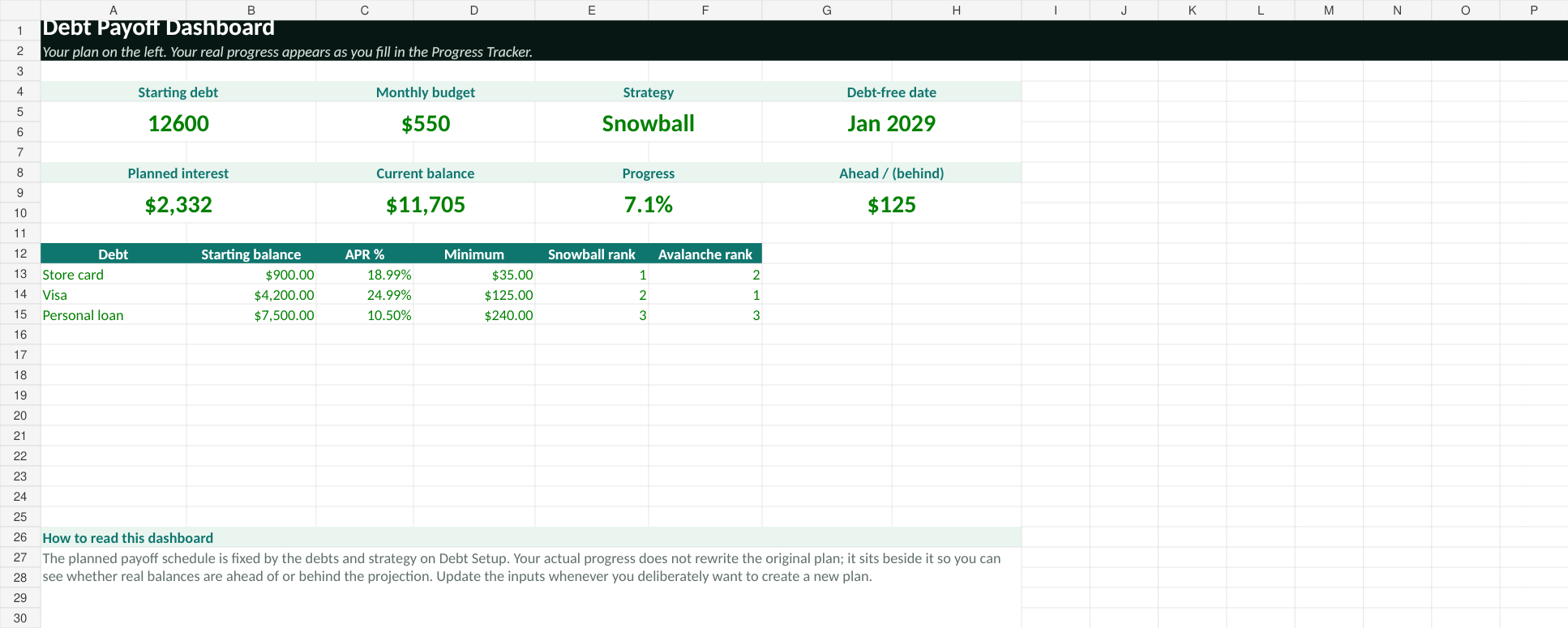
A debt payoff spreadsheet built for what happens after the calculation
A debt payoff calculator is useful when you want a quick answer: How long could this take? Which debt would be paid first? What might an extra monthly payment change?
But a payoff plan does not end when you close the calculator. Balances move, payments change and real life rarely follows a perfect projection. This workbook gives you somewhere to keep the plan and compare it with what actually happens month by month.
“What could happen?”
Use the Debt Snowball Calculator to test scenarios quickly in your browser.
“How am I actually doing?”
Keep your debt list, projected schedule and real monthly progress together in one workbook you control.
Six tabs, each with one clear job
The workbook opens blank. There are no sample balances to delete, no macros to enable and no bank account to connect.
Start Here
Quick instructions, color guidance and a plain-English explanation of how the workbook works.
Debt Setup
Enter one to 12 debts, APRs and minimum payments. Choose snowball or avalanche and add extra payments.
Dashboard
See starting debt, monthly debt budget, chosen strategy, estimated payoff timing, modeled interest and progress.
Progress Tracker
Record real month-end balances and payments for up to 120 months and compare them with the original plan.
Payoff Schedule
Follow a month-by-month modeled schedule of required payments, extra payments, interest and remaining balances.
Sources & Notes
Review the calculation method, strategy rules, compatibility notes, assumptions and limitations in the workbook itself.
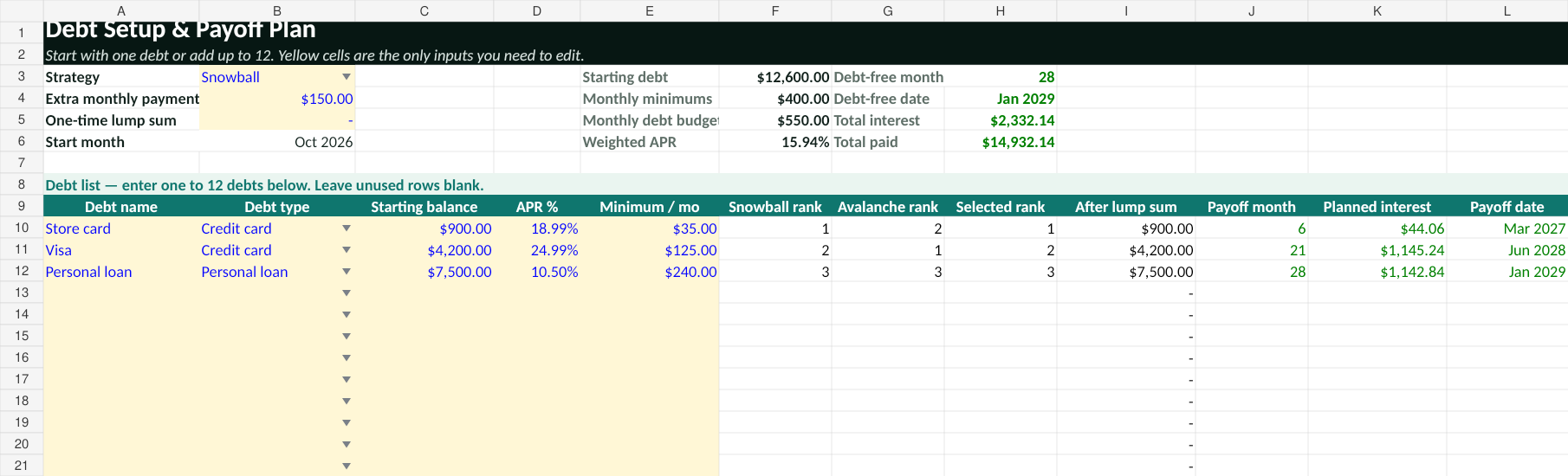
Set up the plan once
Enter the numbers you already have on your statements, then choose the payoff method you want to model.

Track real progress
Record what actually happened and see whether your real balances are ahead of or behind the original projection.
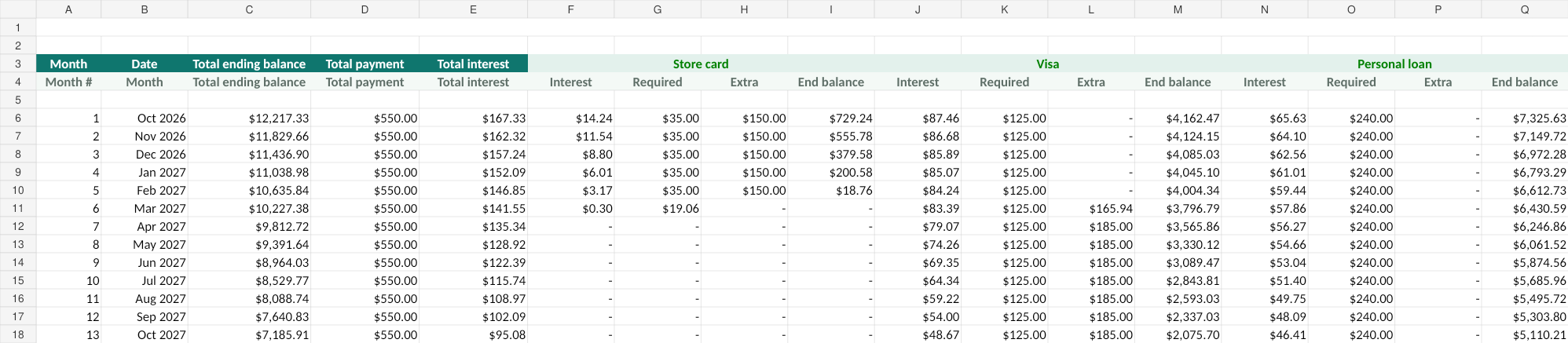
See the month-by-month path
Use the schedule to understand how the selected strategy directs the same monthly debt budget over time.
Screenshots use example figures so you can see the workbook working. Your download opens with blank debt rows.
Debt snowball and debt avalanche in the same spreadsheet
You do not need a separate workbook for each method. Enter your debts once, then switch the strategy selection and see how the modeled payoff order, timing and interest change.
Smallest balance first
Required payments continue across your active debts. Remaining monthly debt budget is directed toward the smallest balance first.
Highest APR first
The same monthly debt budget is used, but extra money is directed toward the debt with the highest APR first.
Still deciding? Read the full Debt Snowball vs Avalanche guide before choosing a strategy.
It works even if you only have one debt
You do not need several credit cards or loans to use the spreadsheet. Enter one debt and leave the unused rows blank.
With one balance, snowball and avalanche produce the same priority. You can still estimate payoff timing, modeled interest and the effect of paying more each month.
See what extra payments could change
Add a recurring extra monthly amount or an optional one-time lump sum and the modeled payoff schedule updates automatically.
The point is not to assume that paying more is always realistic. It is to see what the numbers change before deciding whether that payment fits your budget.
Track the plan against real life
Debt payoff rarely moves in a perfectly straight line. You might pay more one month and less the next. An unexpected expense can interrupt the plan. Your income may change. Or you may decide the original target was too aggressive.
That does not make the original plan useless. It gives you something to compare against.
The Progress Tracker lets you enter your real balances over time and see whether you are ahead of the projection, behind it or roughly on track. It is information, not a score.
Enter your debts
Add the name, balance, APR and minimum payment for each debt.
Choose a method
Select snowball or avalanche from the Debt Setup tab.
Add realistic extras
Enter any recurring extra monthly amount or optional lump sum you want to model.
Update each month
Record your real balances and payments in the Progress Tracker as you go.
Spreadsheet or calculator?
You can use either one on its own. The difference is what you want to do next.
Best for quick scenario testing
Enter your numbers in the browser, compare snowball and avalanche, and test extra payments without downloading anything.
Best for keeping and tracking the plan
Save the debt list, projected schedule and your real monthly progress together in one workbook you can return to.
How the payoff estimate is calculated
The workbook uses the same simplified monthly model as Budget Beyond’s debt payoff tools.
Required payments are handled first. Any remaining monthly debt budget is then directed according to the strategy you selected. As debts reach zero, the original monthly debt budget stays available for the balances that remain.
Excel and Google Sheets
The workbook is provided as an XLSX file and can be opened directly in Microsoft Excel.
To use it in Google Sheets, upload the XLSX to Google Drive and open it with Sheets. The workbook uses standard spreadsheet formulas and contains no macros or VBA. Minor formatting differences may appear after import.
Your debt numbers stay in your workbook
The spreadsheet does not connect to your bank. You manually enter only the balances, rates and payments you choose to include.
Budget Beyond does not receive the debt numbers you type into the workbook. You update the Progress Tracker manually using your own statements.
Ready to build your payoff plan?
Put your debts, payoff order, projected schedule and actual progress in one workbook you can return to each month.
Debt snowball spreadsheet FAQ
Is the debt snowball spreadsheet really free?
Yes. The workbook is free to download and does not require an email address to access it.
Can I use it with only one debt?
Yes. Enter one debt and leave the remaining rows blank. Snowball and avalanche produce the same priority when there is only one balance.
How many debts can I enter?
The Debt Setup tab supports up to 12 debts.
Does it support debt avalanche as well as snowball?
Yes. You can switch between snowball and avalanche from the Debt Setup tab. Snowball prioritizes the smallest balance; avalanche prioritizes the highest APR.
Can I add extra monthly payments?
Yes. The workbook includes an input for a recurring extra monthly payment above the minimum payments you entered.
Can I include a lump-sum payment?
Yes. You can enter an optional one-time lump sum that is applied before the monthly payoff schedule begins.
Does the spreadsheet connect to my bank?
No. There is no bank connection. You enter your debt information manually and keep the workbook on your own device or cloud storage.
Does it work in Google Sheets?
The workbook is provided as an XLSX file designed for Excel, but you can upload it to Google Drive and open it with Google Sheets. Minor formatting differences may occur after import.
Does the workbook contain macros?
No. It does not use macros or VBA.
How far does the payoff schedule go?
The modeled Payoff Schedule extends for up to 360 months. The actual Progress Tracker provides 120 months of tracking rows.
Is the estimated payoff date exact?
No. It is an estimate based on the balances, APRs, payments and assumptions entered into the workbook. Your lender may calculate interest, minimum payments, fees or promotional rates differently.
Can I change from snowball to avalanche later?
Yes. Change the strategy selection in Debt Setup and the modeled schedule updates.
What is the difference between the spreadsheet and the online calculator?
The online calculator is designed for quick scenario testing. The spreadsheet is designed for keeping the plan and comparing it with your real balances month after month.
Last updated October 2026.