Free Budget Spreadsheet for Excel & Google Sheets
This free budget spreadsheet gives you a full 12-month workbook to plan your income, compare planned and actual spending, track debt and savings, and see your year in one place. It’s designed for Excel and suitable for opening in Google Sheets, with no bank connection and no signup required to download.
Each monthly tab covers required expenses, flexible spending, debt and savings, so you can compare your plan against what really happened and adjust as the year goes on.
More than a one-off printable
This spreadsheet is for anyone who wants to track a household budget month by month without connecting a bank account or relying on an app.
Everything is entered manually. That’s a deliberate choice. You see every number because you typed it, which can make it easier to stay close to your numbers and notice patterns over time.
It’s also more than a printable budget template. Behind each monthly sheet is a Year Dashboard that pulls your numbers together automatically, so you get a working budget system rather than twelve disconnected pages.
A 12-month system, not just a template
Plan the month, update what actually happened, and step back to see the bigger picture across the year.
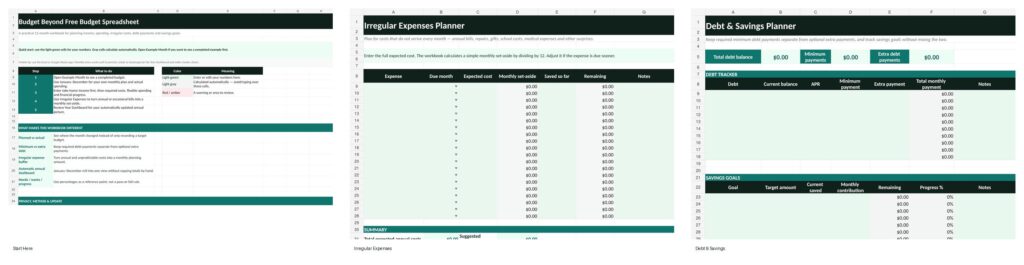
Monthly Budget sheets
January through December use the same structure for income, needs, wants and financial progress.
Year Dashboard
See planned and actual income, spending, leftover amounts, percentages, surplus months and simple charts.
Irregular Expenses
Plan annual and occasional costs and calculate a simple monthly set-aside.
Debt & Savings
Keep required debt payments, extra payments and savings goals separate.
Example Month
A filled-in sample shows how the workbook works before you enter your own numbers.
Start Here guide
A short walkthrough explains input cells, calculated cells and where to begin.
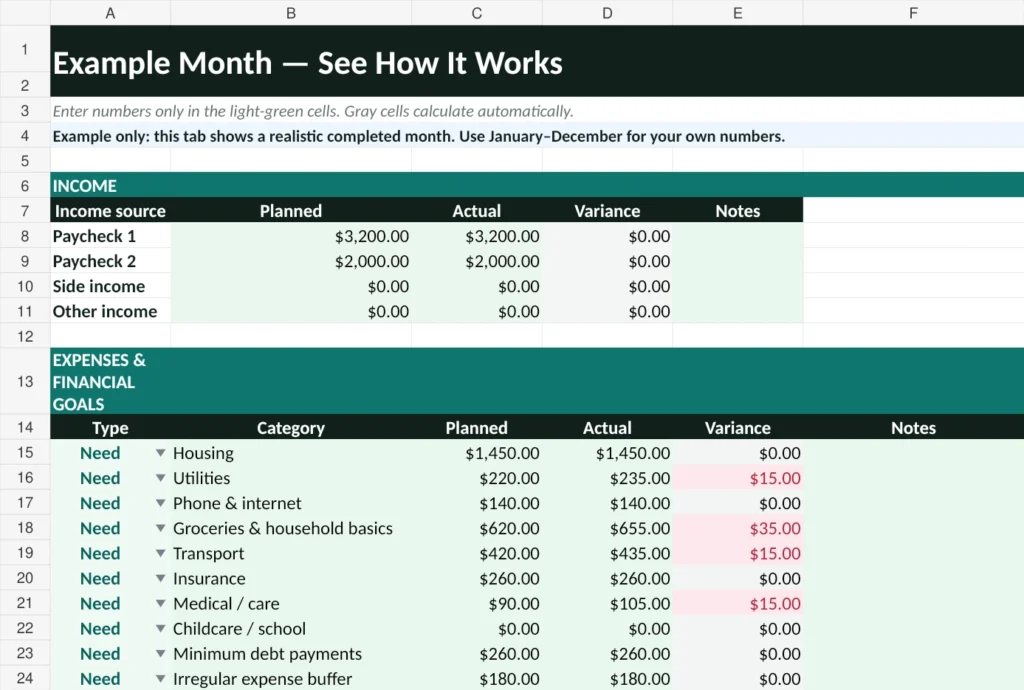
See your plan next to what actually happened
Most budgets drift quietly. You plan $400 for groceries, spend $460, and never go back to check why.
Each monthly sheet has space for planned and actual numbers side by side. A notes column lets you record why a number came in higher or lower — a bigger grocery run, an unexpected bill or a quieter month.
Leftover is the amount remaining after your income and the amounts you’ve entered across needs, wants and financial progress are accounted for. Over several months, the difference between planned and actual numbers can show where your original budget assumptions need adjusting — without turning the exercise into a judgment about whether you spent “correctly.”
What each monthly sheet tracks
Income, required expenses, flexible spending, savings, minimum debt payments, extra debt payments, planned amounts, actual amounts, variance and notes.
Give non-monthly costs a place in the budget
Annual insurance. Car registration. School costs. Holidays. Home repairs. Medical bills. Yearly subscriptions. None of these happen monthly, which is exactly why they’re easy to miss in a standard monthly budget.
The Irregular Expenses tab lets you list these costs and calculates a simple monthly set-aside by spreading the expected cost across 12 months. If an expense is due sooner, you may need to increase that monthly amount.
This won’t catch every surprise — no spreadsheet can predict every emergency. But it can turn expenses you reasonably expect into planned costs rather than shocks.
Useful companion: if you’re deciding how much cash reserve to build alongside these planned expenses, see the Emergency Fund guide.
Keep required payments and financial progress separate
Minimum debt payments are required spending. Extra debt payments are different: they’re financial progress — money you’re choosing to put toward debt beyond what’s required.
This spreadsheet keeps the two separate, so you can see what you’re required to pay and how much additional money you’re choosing to put toward debt. Savings goals, emergency funds and sinking funds also get their own space.
Want to estimate payoff time and interest? Use the Budget Beyond Debt Payoff Calculator.
Progress without a rigid rule
Needs, Wants and Progress percentages are useful diagnostics, not pass/fail scores. The workbook helps you see your pattern without pretending one percentage works for everyone.
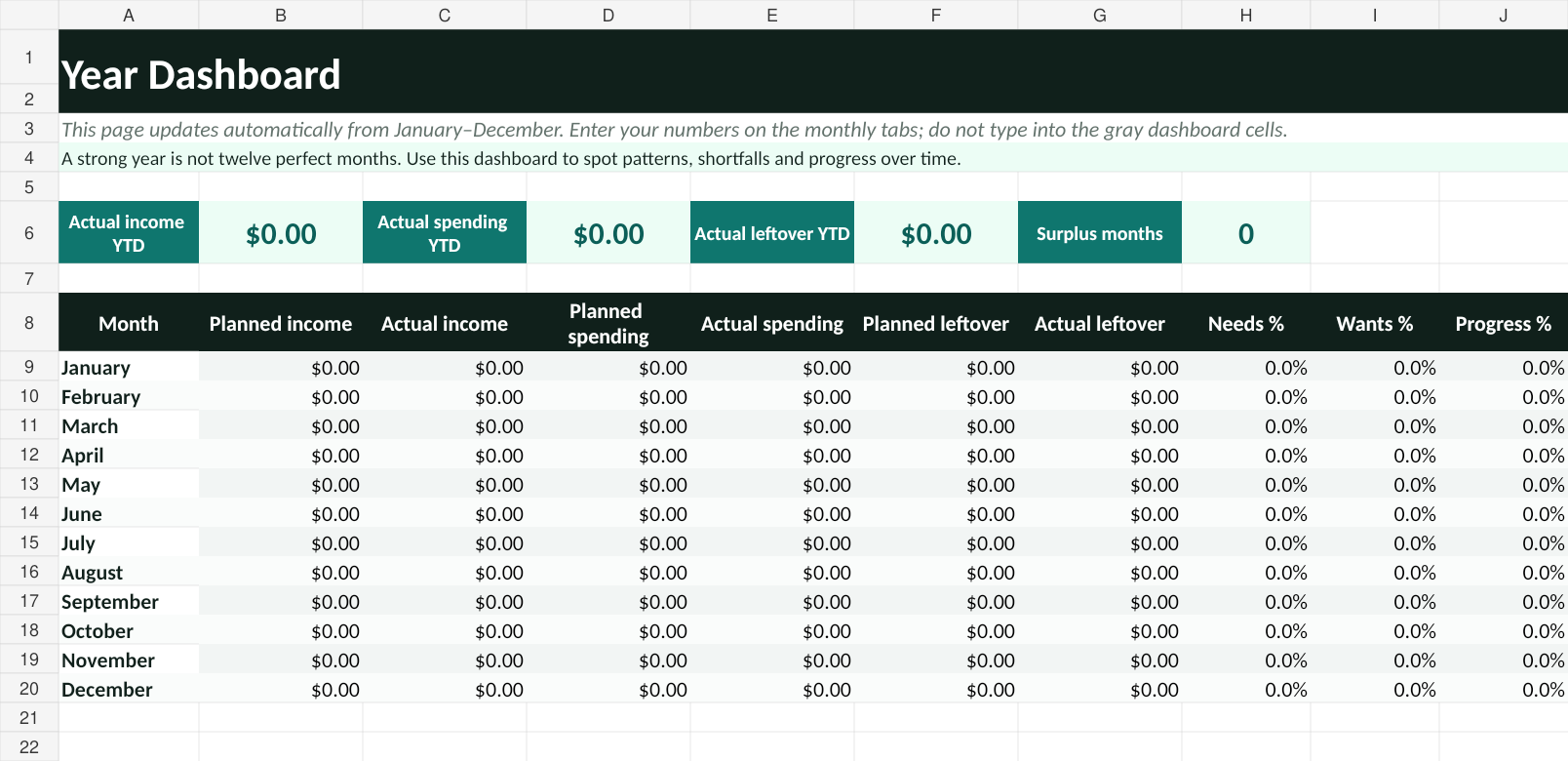
See your year at a glance
The Year Dashboard updates as you fill in your monthly sheets. It shows monthly planned and actual income, spending and leftover amounts, Needs/Wants/Progress percentages, year-to-date actual totals, surplus months and simple charts that make patterns easier to spot.
It’s a summary of the numbers you’ve entered, not a forecasting tool.
Getting started takes four steps
Enter take-home income
Use the amount that actually reaches your account.
Plan required expenses first
Housing, utilities, groceries, transport, insurance and minimum debt payments usually come first.
Add wants and progress
Add flexible spending, savings goals and any extra debt payments.
Update actual numbers
Enter what actually happened and use the dashboard to review the month and year.
Want a simple benchmark while reviewing categories? See the 50/30/20 rule.
Excel, Google Sheets and phone use
Excel
Download the XLSX workbook and open it directly in Excel.
Google Sheets
Upload the XLSX file to Google Drive and open it with Google Sheets. You can work with the uploaded workbook there or save a Google Sheets copy if you prefer.
Minor formatting differences can occur between spreadsheet applications.
Using it on a phone
You can update the workbook on a phone. Portrait mode works reasonably well for routine monthly entry, while the Year Dashboard, Irregular Expenses and Debt & Savings are easier to review in landscape mode or on a larger screen.
Spreadsheet or Budget Calculator?
Use the budget spreadsheet when…
You want ongoing monthly tracking, planned vs. actual numbers, irregular expense planning and a year view you can keep updating.
Use the Budget Calculator when…
You want a faster one-time snapshot of income, expenses, estimated leftover and your Needs/Wants/Progress split — with no download required.
Ready to build your budget?
This free budget spreadsheet gives you 12 months of planned vs. actual tracking, an automatic Year Dashboard, irregular expense planning and separate tracking for debt and savings — all in one workbook.
Download the Free Budget SpreadsheetPrefer it in your inbox?
Get the Budget Beyond spreadsheet in your inbox, plus occasional practical budgeting tools and tips.
Email Me the SpreadsheetOptional. You can still download the spreadsheet directly without signing up.Questions about the budget spreadsheet
Is this budget spreadsheet really free?
Yes. You can download it directly with no email required. Email delivery is optional.
Do I need to enter my email to download it?
No. The spreadsheet is available as a direct download.
Does this budget spreadsheet connect to my bank account?
No. Everything is entered manually, with no bank connection or automatic transaction import.
Will it work the same in Excel and Google Sheets?
It’s designed for Excel and suitable for opening in Google Sheets. Minor formatting differences are possible depending on your spreadsheet application.
Can I use this budget spreadsheet on my phone?
Yes. Monthly entry works reasonably well on a phone, while wider sheets are easier in landscape mode or on a larger screen.
How is this different from a printable budget template?
This is a 12-month workbook with monthly sheets, a Year Dashboard, irregular-expense planning and separate debt and savings tracking.
What’s the difference between minimum and extra debt payments?
Minimum payments are required monthly costs. Extra payments are optional amounts beyond the minimum and are tracked separately as financial progress.
Does the spreadsheet calculate my budget percentages?
Yes. It calculates Needs, Wants and Progress percentages based on the numbers you enter.
Can I change the budget categories?
The workbook includes preset categories plus “other” categories and notes fields. If you customise it further, make a backup first and avoid overwriting calculated cells.
How should I budget for irregular expenses?
List predictable non-monthly costs and use the suggested monthly set-aside as a starting point. Increase it if the bill is due sooner or you’re starting partway through the year.
Should I use this spreadsheet or the Budget Calculator?
Use the spreadsheet for ongoing monthly tracking. Use the Budget Calculator for a quick one-time view.